Kimberly Cox
Chromebook Lost Or Stolen
Lost Chromebook
If your school provided Chromebook was lost, contact AMP Support as soon as possible and provide the following information:
- Last known location
- Last time you logged into the Chromebook
The AMP Support team will try to track the Chromebook and follow up with your parent/legal guardian.
Stolen Chromebook
If your school provided Chromebook has been stolen, contact the local authorities to open a police report. After opening the police report, contact AMP Support and provide the following information:
- Police report number
- Last known location
- Last time you logged into the Chromebook
The AMP Support team will try and track the Chromebook and follow up with the local authorities.
If this did not resolve your request, Chat With Us or Submit A Ticket.
Turn On/Off Chromebook Accessibility Features
Click the Chromebook icon on the right to open the steps to turn on or turn off accessibility features.

If this did not resolve your request, Chat With Us or Submit A Ticket.
How To Adjust Volume On Chromebook
Method 1 – Use the volume keys on the keyboard

From left to right: Mute, Volume Down, Volume UP Method 2 – Using The Chromebook Menu
- Click the time in the lower right corner

- Slide to the left to turn down or slide to the right to turn up

If this did not resolve your request, Chat With Us or Submit A Ticket.
How Do I Clear Cache or Browser History?
You use a browser every day to check your email, attend class and navigate throughout the school. Your browser holds onto information, and over time it could cause problems with logging in or bringing up websites. It’s always a good idea to clear out the cache, or browser history, and clear cookies on a regular basis. Below you will find links to instructions on how to clear your cache and browser history for Chrome, Firefox, Edge, and Safari. To open the instructions, click the icon of the browser you are using.

Chrome

Firefox

Safari

Edge
If this did not resolve your request, Chat With Us or Submit A Ticket.
Microphone Not Working
If you are experiencing an issue with your microphone during class or live conferences, try the following troubleshooting steps before contacting technical support:
- Make sure your volume is turned up.
- Clear your browsing data.
- Restart the computer.
- Grant access to your microphone by clicking “Allow” when prompted. See Figure 1 below.
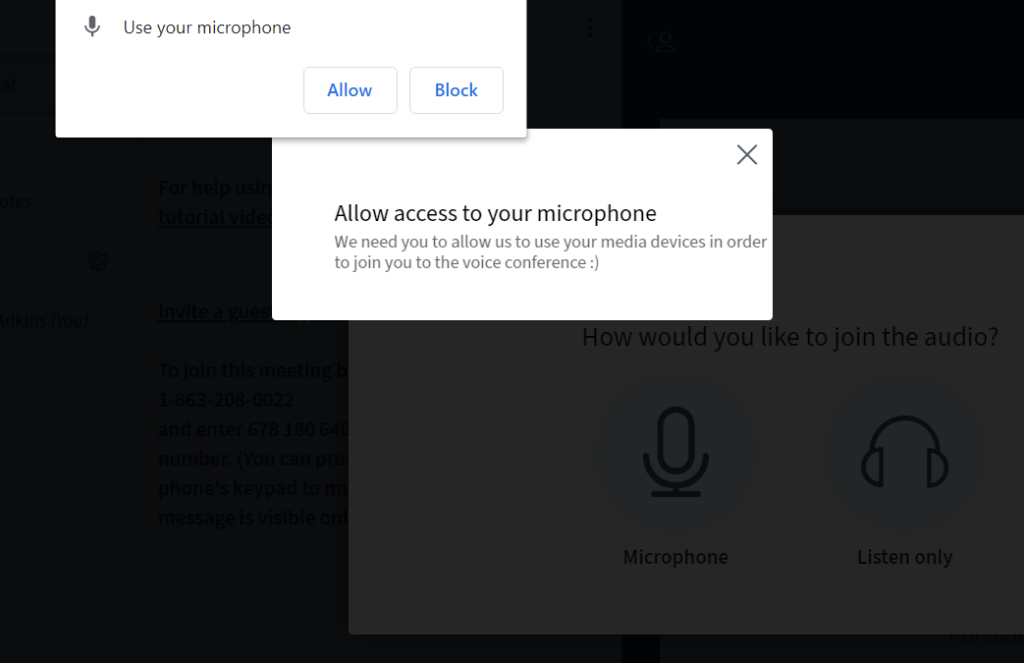
Figure 1 – Allow Microphone 5. If you are using headphones, make sure you have headphones selected under Input settings. See Figure 2 below.
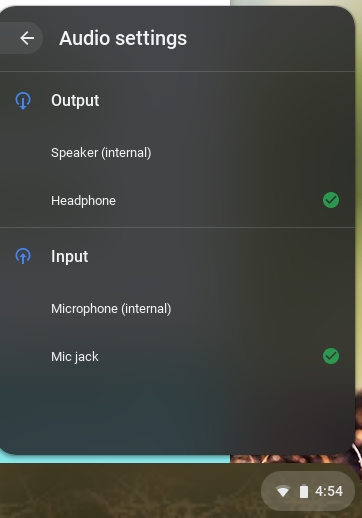
Figure 2 – Chromebook Audio Settings If this did not resolve your request, Chat With Us or Submit A Ticket.
Big Blue Button 401 Error
If you receive the following error message while in a live conference or when trying to connect to a live conference:

Big Blue Button 401 Error The common cause of this error is the teacher has removed you (or your student) from the live conference. If this happens, please contact your teacher directly.
Note: Once removed from the live conference you will no longer be able to attend that conference. If the live conference was recorded it will be available in your course under Conferences => Concluded Conferences once the teacher ends the conference.
If this did not resolve your request, Chat With Us or Submit A Ticket.
I Cannot Access Certain Websites On My Chromebook
To help ensure the safety of our students, families, teachers, and staff we have blocked certain websites from being accessed when using school provided Chromebooks. The following list provides you the categories of the types of websites that are blocked:
- Academic Dishonesty
- Aggressive Behavior Includes 5 subcategories
- Weapons
- General Aggressive Behavior
- Intolerance & Hate
- Violence
- Guns
- Controlled Substances Includes 4 subcategories
- Drugs
- Alcohol Sale
- General Controlled Substances
- Tobacco
- Entertainment Includes 7 subcategories
- General Entertainment
- Celebrity Gossip
- Movie Tickets
- Movies and Television
- Audio/Video Downloads
- Magazines
- Radio
- Games Includes 4 subcategories
- Online Games
- General Games
- Gaming Information
- Gambling
- Malicious Sites Includes 11 subcategories
- General Malicious Sites
- Phishing
- Hacking
- Proxy
- Piracy
- Fraud
- Spam
- Adware
- Dialers
- Spyware
- Infected Sites
- Pornography
- Religious
- Sexual Includes 3 subcategories
- Nudity
- Sexuality
- General Sexual
- Shopping Includes 5 subcategories
- Clothing
- General Shopping
- E-commerce
- Online Auctions
- Cell Phones and Add-ons
- Social Includes 6 subcategories
- Dating
- Instant Messaging
- General Social
- Blogs
- Chat Rooms
- Social Networking
- Time Wasting Includes 6 subcategories
- Manga
- General Time Wasting
- Humor
- Web Comics
- Photography
- Fan Fiction
As a reminder, the use of school provided laptops is for attending school and completing schoolwork. They are not setup to use as a typical laptop you purchase from a store. The Chromebooks are monitored 24 hours a day and any misuse is reported to the School Administration Office. If there is a educational need to unblock a certain website, please submit a ticket and the Principal will review the request and provide you with a response.
If this did not resolve your request, Chat With Us or Submit A Ticket.
Chromebook Shortcut Keys
In this article, you will find a list of keyboard shortcuts for your Chromebook that you may find useful:
Alt + Clicking the touchpad Right-click menu Ctrl + Alt +Z Enable ChromeVox Ctrl + T Opens a new tab Ctrl + C Copy selected text or image Ctrl + V Paste what was recently copied Ctrl + Z Undo the last change you made Ctrl + ++ Zoom in Ctrl + — Zoom out Ctrl + Show windows Take a screenshot Hold Power button for 3 seconds Log out, save work, and power down If this did not resolve your request, Chat With Us or Submit A Ticket.
Resetting Your Initial Password
How to change your initial password provided by your school’s staff.