amckune
How to Submit Time via Offline Tracker
Updating Your Chromebook
- Log into the Chromebook and launch the Chrome browser.
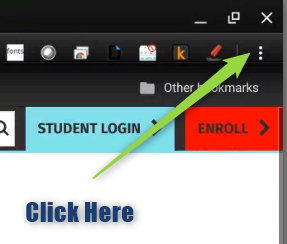
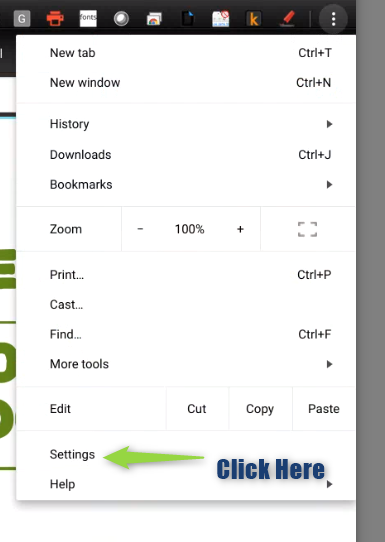
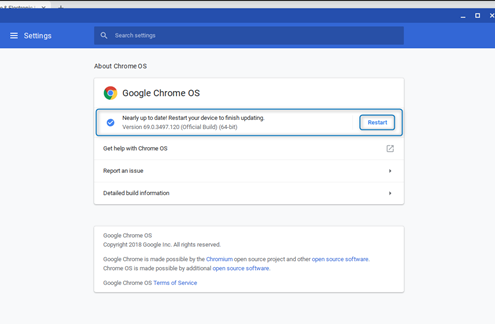
- Click on the 3 dots in the upper right-hand corner. Then click “Help” at the bottom of the menu, and finally, click on the “About Chromebook OS”

- You will see your current version of the Chrome OS, which for testing needs to be on the current version. Click the “Check for updates” button on the right.
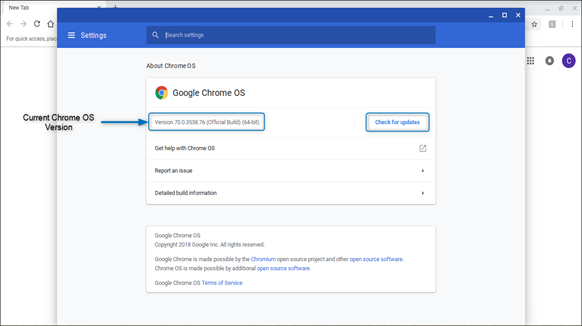
- Once it has finished updating you will be required to restart the device. Click on the “Restart” button. After the restart, your Chromebook will have the latest version of Chrome OS.
If this did not resolve your request, Chat With Us or Submit A Ticket.
How To Add Secondary Email To Your Canvas Account
As a part of the secure login process, parent accounts were issued with google credentials. Parents use these credentials to access their student’s classes. While it is acceptable to use this assigned email address for your school communications, we understand that sometimes it is more convenient to use your primary email address. If you would like to do that, please follow the directions below.
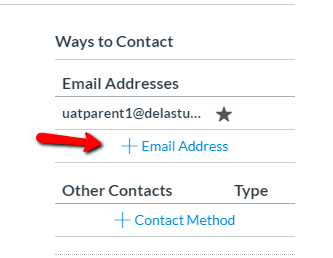
On the settings page, in the top left there is a “Ways to Contact” section. Click on the “+ Email Address” and enter the email you would like to use. You will be prompted that the email needs to be confirmed. Go to your email, search for the email from Instructure Canvas, and click the link to confirm it. This will direct you back to your settings area.
If you would like the additional email to be your primary email in the system, click on the star next to it to highlight and select that email as primary.
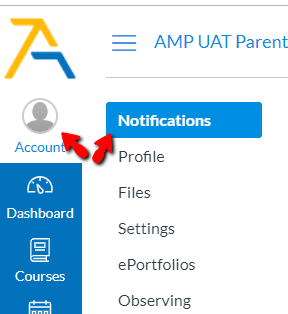
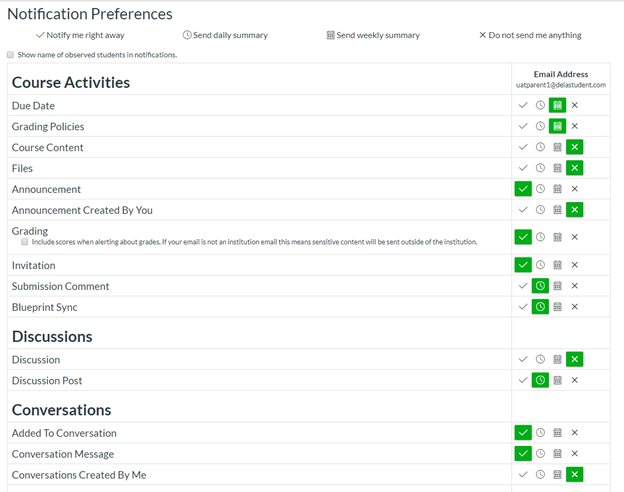
Once you have added your additional email address as a contact method, you will need to update how you would like to be notified. This is done through the notifications area where you can set the method and frequency for all your contact methods.
To make sure you get the emails at your newly added address, adjust this in the Conversations section. (Conversations are what Canvas calls the email).
If this did not resolve your request, Chat With Us or Submit A Ticket.
How To Adjust Screen Resolution On Chromebook
First, click the 3 dots in the upper right corner of Google Chrome
Then click settings
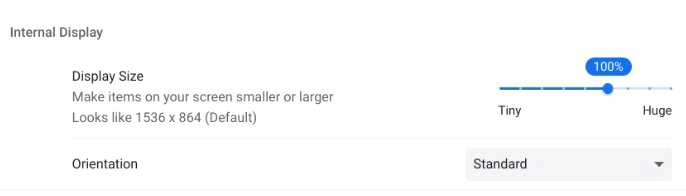
Scroll down the setting page until you see Displays, and click Displays
Move the blue slider bar until is had 100% above it.